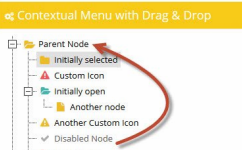

在Xcode中建立一个iOS项目后,会自己产生一个.plist文件,点击时会看见它显示的是类似于excel表格:

但是,如果打开方式选择Source Code,你会看见它其实是一个xml文件。
我们会做一个小例子,在这个例子中我们自己建立一个plist文件并填入数据,然后运行时读取这个plist文件,并将数据填写在界面上。
首先要知道读取plist文件的方法,一般来说,使用代码
NSString *plistPath = [[NSBundle mainBundle] pathForResource:@"listFileName" ofType:@"plist"];
NSArray *array = [[NSArray alloc] initWithContentsOfFile:plistPath];
NSDictionary *dictionary = [[NSDictionary alloc] initWithContentsOfFile:plistPath];
已经足够了,此时可以使用NSLog例程查看array和dictionary的内容。不过,有时候受plist文件内容的限制,array内容可能为空。
其实,用dictionary就已经足够了,在下面的例子里我们也只用dictionary。
1、运行Xcode4.2,新建一个Single View Application,名称为ReadPlistFile,其他设置如下图:

2、新建我们自己的plist文件:
File —> New —> New File,选择Mac OS X下的Property List

文件名为 customInfo,Group选择Supporting Files。
3、单击新建的customInfo.plist,我们添加数据,如下图:

注意,Type一项的类型,选择的是Dictionary,以Source Code打开,显示如下:
<?xml version="1.0" encoding="UTF-8"?>
<!DOCTYPE plist PUBLIC "-//Apple//DTD PLIST 1.0//EN" "http://www.apple.com/DTDs/PropertyList-1.0.dtd">
<plist version="1.0">
<dict>
	<key>Student</key>
	<dict>
		<key>Name</key>
		<string>Yang</string>
		<key>Sex</key>
		<string>Male</string>
		<key>Num</key>
		<string>SX_010</string>
	</dict>
	<key>Mentor</key>
	<dict>
		<key>Name</key>
		<string>Gu</string>
		<key>Sex</key>
		<string>Male</string>
	</dict>
</dict>
</plist>
4、为视图添加控件:
单击BIDViewController.xib,打开IB,拖几个控件上去,并设置好布局,如下图:

上图中所有的控件都是Label,并设置了字体大小。
5、接下来就是映射呗,把五个灰色的Label都映射到BIDViewController.h文件中,类型都死OutLet,名称依次是stuName,stuSex,stuNum,mtName,mtSex。

6、单击BIDViewController.m,在viewDidLoad方法中的[super viewDidLoad]之后添加如下代码:
//首先读取studentInfo.plist中的数据
NSString *plistPath = [[NSBundle mainBundle] pathForResource:@"customInfo" ofType:@"plist"];
NSDictionary *dictionary = [[NSDictionary alloc] initWithContentsOfFile:plistPath];

//将学生信息填入视图
NSDictionary *tmpInfo = [dictionary objectForKey: @"Student"];
self.stuName.text = [NSString stringWithFormat:@"%@", [tmpInfo objectForKey: @"Name"]];
self.stuSex.text = [NSString stringWithFormat:@"%@", [tmpInfo objectForKey: @"Sex"]];
self.stuNum.text = [NSString stringWithFormat:@"%@", [tmpInfo objectForKey: @"Num"]];

//将导师信息写入视图
tmpInfo = [dictionary objectForKey: @"Mentor"];
self.mtName.text = [NSString stringWithFormat:@"%@", [tmpInfo objectForKey: @"Name"]];
self.mtSex.text = [NSString stringWithFormat:@"%@", [tmpInfo objectForKey: @"Sex"]];
7、运行,查看效果:

iphone:plist的读写存代码示例
| 01 | - (void)viewDidLoad { |
| 02 |
| 03 | //读取plist |
| 04 | NSString *path = [[NSBundle mainBundle] pathForResource:@”demo” ofType:@”plist”]; |
| 05 | NSMutableDictionary *data = [[NSMutableDictionary alloc] initWithContentsOfFile:path]; |
| 06 | NSLog(@”%d”,[data count]); |
| 07 |
| 08 | //添加一项内容 |
| 09 | [data setObject:@"content" forKey:@"item4"]; |
| 10 |
| 11 | //获取应用程序沙盒的Documents目录 |
| 12 | NSArray *paths=NSSearchPathForDirectoriesInDomains(NSDocumentDirectory,NSUserDomainMask,YES); |
| 13 | path = [paths objectAtIndex:0]; |
| 14 |
| 15 | //得到完整的文件名 |
| 16 | NSString *filename=[path stringByAppendingPathComponent:@"test.plist"]; |
| 17 |
| 18 | [data writeToFile:filename atomically:YES]; |
| 19 | [data release]; |
| 20 | [super viewDidLoad]; |
| 21 | } |
 下载
下载 
 下载
下载  下载
下载  下载
下载 
 下载
下载  下载
下载 
 喜欢
喜欢  顶
顶 难过
难过 囧
囧 围观
围观 无聊
无聊